How to move your medicine list to an app
Medicines on paper, in Excel and in an old app? A step-by-step guide to moving your medicine list into one app on your phone — by photo, no file uploads.
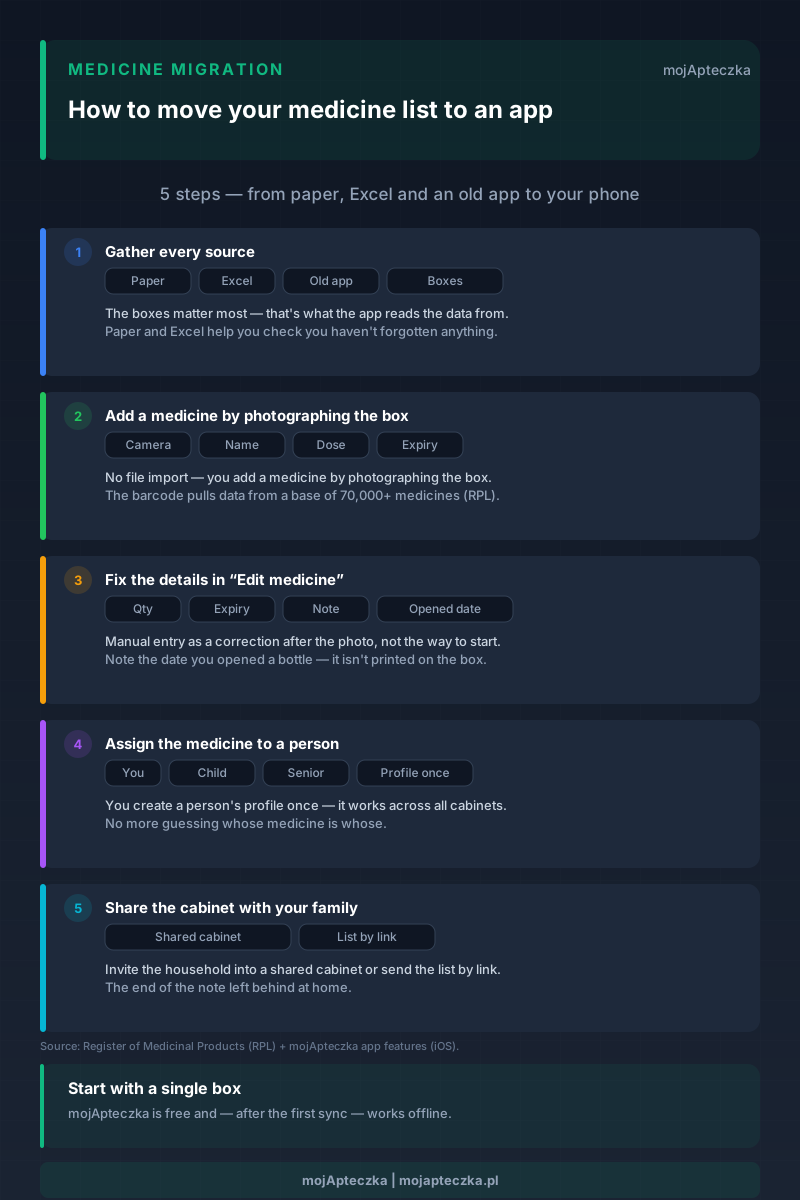
You’ve got a medicine list on a note stuck to the fridge, part of it in an Excel sheet, and the rest in an old reminder app you barely open any more. Eventually you decide to pull it all into one place — and the first question lands straight away: “right, but how do I upload all of this?”
Let’s be honest from the start: there’s no “upload a file” button. There’s no Excel import and no “move everything from another app in one click”. There’s one way to add a medicine — you photograph the box. And that isn’t a shortcoming; it’s the way to do something better than copying over an old, out-of-date list — you get a proper look at what’s actually sitting in the drawer.
This guide shows you, step by step, how to move the household medicine clutter into a single medicine cabinet on your phone — what to check, how to mark the owner and the date, and what the app deliberately doesn’t do.
Before you start: gather everything in one place
Migration goes fastest when you’re not hopping between rooms. Before you reach for your phone, bring every source together on the table:
- the note or notebook with the handwritten list,
- the Excel sheet or notes on your phone,
- the old app — open it and keep it in view,
- and above all the boxes themselves from the drawer, the bathroom and the kitchen.
The boxes matter most here, because that’s what the app reads the data from. The note and the Excel sheet are there mainly to help you check you haven’t forgotten anything — for example, a medicine someone keeps in another room.
Step by step: how to move your medicines into your cabinet
1. Photograph the box (there’s no “upload a file”)
You go into the “Add” tab, the camera opens, and you photograph the box. The app pulls the name, dose and expiry date from the photo, and from the barcode it fetches data from the Register of Medicinal Products — a database of over 70,000 medicines registered in Poland. If you’d rather not take a live photo, you can pick an existing photo of the box from your gallery.
That’s the whole secret of the “migration”: you don’t upload a file, you simply show the app one box after another. It works thanks to AI medicine scanning, which recognises the product from a photo.
2. Fix or fill in the details in “Edit medicine”
Open each medicine you’ve added in the “Edit medicine” view and correct whatever the photo didn’t read perfectly: the name, dose, quantity or expiry date. This is also where you add a note — for example the date you opened a bottle of drops or syrup, which simply isn’t printed on the box.
Manual entry is there, yes — but as a correction after the photo, not as the way to start. That distinction matters if you’re used to apps where you typed a medicine in from scratch.
3. Assign the medicine to the right person
This one’s yours, this one’s your child’s, this one’s your grandmother’s. You mark the owner so you’re not guessing later whose medicine is whose. You create a profile for a person you care for once, and it works across all your cabinets — which helps especially when you’re juggling several people’s medicines at once, for example in a caregiver role for a parent who lives separately (we’ve gathered more about that setup on the for caregivers page).
4. Share the cabinet with your family
Finally, you decide who else should see this supply. You can invite the household into a shared cabinet so everyone looks at the same, up-to-date list. Or — if you just want to show someone what you’ve got — send just the medicine list as a link. Either way, that’s the end of the era of the note left at home while you’re standing in the pharmacy.
Why a photo only? (and why that’s not a shortcoming)
No file import sounds like a limitation at first. In practice it works out for the better, for a simple reason: an old list is almost never current. The note still holds medicines used up long ago, it’s missing the ones bought last week, and half the doses are “roughly right”.
When you go box by box, you do two things at once: you move the medicines into the cabinet and you tidy up the drawer. You set expired ones aside to hand in at the pharmacy, gather duplicates in one place, and only what you actually have ends up in the cabinet. An evening with the drawer instead of mindless copying — and the list is real from day one.
”All medicines” isn’t your cabinet — two different drawers
This distinction is worth catching early, because it’s easy to mix up. The app has two separate lists:
- Your cabinet — what you physically have at home. A medicine reaches it only through a photo of the box.
- “All medicines” — a browser of the product database. You don’t add anything to your cabinet from here; from here you drop entries onto the “To restock” shopping list when something needs buying.
The simplest way to remember it is as two drawers: one says “what I have”, the other “what to buy”. During migration you mostly use the first — the boxes from the table land in the cabinet. You’ll fill the shopping list later, when you notice something’s missing.
What the app doesn’t do
So there are no misunderstandings — a few things mojApteczka deliberately leaves out of scope:
- It doesn’t import a list from a file — not from Excel, not from CSV, not from another app.
- It doesn’t read the batch number (LOT) off the box. It reads the name, dose and expiry date, but not the batch number.
- It doesn’t send push notifications saying “this medicine is expiring”. You check the dates yourself on the colour-coded “Expiring medicines” list and on the widget.
- It isn’t a medical tool — it doesn’t judge whether a medicine “will still work”, and it doesn’t replace a doctor or a pharmacist. It’s order in your cabinet, not medical advice.
A short recap to finish
- Gather the note, the Excel, the old app and — most importantly — the boxes onto one table.
- Add each medicine with a photo of the box (or a photo from your gallery). There’s no “upload a file”.
- Fix the details in “Edit medicine” and add a note if needed.
- Assign the medicine to a person; you create a profile for a person you care for once.
- Share the cabinet with your family or send the list as a link.
The best thing about this approach is that once the migration is done you don’t just have a list on your phone — you also have a drawer that’s genuinely sorted out. mojApteczka is free and — after the first sync — works offline too, so you can start right now: one box, one photo, the first medicine in your cabinet.
Frequently asked questions
- Can I import my medicine list from Excel or a CSV file?
- No. mojApteczka has no file import — not from Excel, not from CSV, and no “move everything from another app in one click”. There's one way to add a medicine: you photograph the box. That's a deliberate choice — along the way you review what you actually keep at home, instead of copying over an old, out-of-date list.
- Can I type a medicine in by hand, without a photo?
- There's no separate “add a medicine manually” box — the start is always a photo of the box. Manual entry only comes later, in the “Edit medicine” view, as a correction to what the app read from the photo.
- What if I no longer have a medicine's box?
- A medicine only reaches the cabinet through a photo of the box, so without the box you can't add it as a cabinet entry. If it's a medicine you want to restock, you can pick it in the “All medicines” browser and drop it onto the “To restock” shopping list — that's a separate drawer from your cabinet.
- Do I have to do the whole migration at once?
- No. You can add a few medicines today and the rest another evening. The cabinet works from the very first box you add, and you can browse and edit your data offline too — changes wait in a queue and sync on their own once you're back online.
- Will the app push me a notification that a medicine is running low or expiring?
- You see the dates on the “Expiring medicines” list, colour-coded by how close the date is, and on a widget on your phone screen — both of which you check yourself. It's an organisational tool — it shows the dates, but it doesn't judge whether a medicine “will still work”.
- Do I need the internet to move my list across?
- The AI scan itself needs the internet, because a server analyses the photo. Browsing the list, editing entries and checking things off all work offline — after the first sync, the app runs without a connection too.