Tablet on the Wall for Seniors: Turn mojApteczka into a Medication Board
Set up a tablet for seniors with mojApteczka on a fixed screen. Dose colours, kiosk mode, caregiver QR sharing and clear care boundaries.
Mum has seven medicines a day. Four came from the cardiologist, two from the diabetologist, one from the ophthalmologist. Each specialist sees their own slice, but no one sees the whole list. Mum lives alone, two hours away from you. She keeps her phone in a handbag in the hall, so three out of five reminders set by her son in an app regularly disappear unnoticed. The paper dosing plan has been on the fridge for three months, but nobody is quite sure whether today’s crossed-out square belongs to Monday or to today.
This article is for families who recognise that scene. We are not going to suggest another alarm or another app hidden in a pocket, because the pocket is part of the problem. We will show a setup more and more families choose when the classic methods have run out of road: an inexpensive tablet hung in plain sight, mojApteczka running permanently in kiosk mode, and today’s dose bar coloured so that the older adult can read the situation at a glance from three metres away.
Why a phone in a pocket loses to a medicine reminder on screen
Classic medicine reminder apps assume that the older adult keeps the phone nearby, turns it on, unlocks it and taps a confirmation. Every one of those steps creates friction. It may be small, but it is real. The phone often sits on a chest of drawers because unlocking it with arthritic fingers is difficult. A notification disappears after a few seconds if nobody reacts to it. A pop-up with an “I have taken it” button demands a decision, and a decision made while tired, mildly confused or simply busy with something else is exactly what you do not want to require from an eighty-year-old.
A tablet on the wall changes the rule. Information stops needing active attention. It is constantly present in the background. The older adult walks past the fridge, glances at the tablet and sees whether the day is on track. No unlocking, no searching for a phone, no remembering where the device was left. This is the difference between “a reminder you have to receive” and “information already sitting in your field of view”. The first works well for a thirty-year-old. The second can also work for someone in the early stages of memory problems.
Medicine cabinet on a tablet — what an older adult should really see from three metres
Before talking about hardware and mounts, it is worth slowing down and asking what should actually be visible. mojApteczka shows today’s situation in three layers.
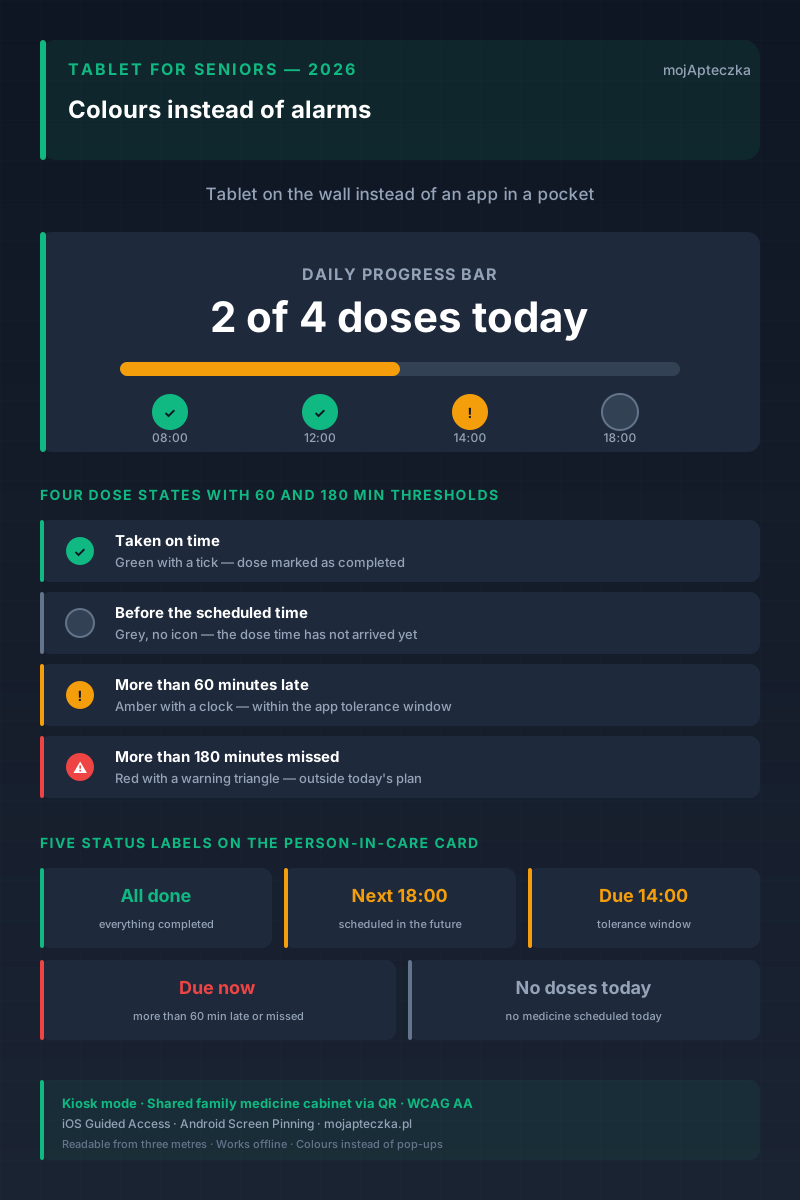
The first layer is the progress bar — “2 of 4 today”. It counts only today, not the past week and not the whole antibiotic course. The bar fills from the left, and the fill colour reflects the state of the day: green when everything is going to plan, amber when at least one dose is late, red when one dose has been marked as missed. From three metres away, the older adult is not reading numbers. They see the colour of the filled bar and know whether things look calm or need attention.
The second layer is the row of dose times beneath the bar. Each time has a status colour and a small icon:
- green with a tick — the dose has been marked as completed on time,
- grey without an icon — the scheduled time has not arrived yet, for example it is 14:00 and the dose is planned for 18:00,
- amber with a clock and exclamation mark — more than 60 min have passed since the planned time, so the app marks the dose as late and worth checking,
- red with a warning triangle — more than 180 min have passed, so the app marks the dose as missed in today’s plan.
The 60 and 180 min thresholds are organisational thresholds inside the app, not medical advice for every medicine. They were chosen after observing typical home medicine routines, and they are the same on iOS and Android. What to do with a late dose always depends on the doctor’s or pharmacist’s instructions. When in doubt, check the leaflet or call a pharmacy.
The third layer is the status label — a short phrase in the corner of the card that helps the older adult know where to look next. There are five states:
- “All done” in green — all today’s doses are marked as completed and the app has nothing else scheduled for today,
- “Next 18:00” in amber — the next dose is still in the future,
- “Due 14:00” in amber — the scheduled time has passed, but it is still within the app’s 60 min organisational window, a good moment to check the plan,
- “Due now” in red — a dose is more than 60 min late or has been marked as missed, so it deserves attention,
- “No doses today” in neutral styling — none of the older adult’s medicines has a schedule for today.
The distinction between “Next” and “Due” was added in May 2026 after a real user report. At 21:28 the user saw “Next 21:00” and read it as if the clock were wrong. Today, the same situation shows “Due 21:00”, which is much clearer. The label does not make a therapeutic decision. It simply tells the family which part of the plan needs a look.
That is everything the older adult needs to see from three metres away: four colours, five short status labels and one icon beside each time. The rest is hardware setup.
Which tablet for seniors should you choose — Android, iPad or old hardware
You do not need expensive hardware. The tablet is an information screen with emergency battery backup, not a work device. Families usually choose one of three paths.
A cheap new Android tablet, around 400 to 600 PLN. Lenovo Tab M9, Samsung Galaxy Tab A9 and similar 8 to 10 inch tablets with 3 GB RAM and Android 13 or 14 are enough. Do not go below Android 12 if you can avoid it, because Screen Pinning in older versions can be unreliable and very cheap five-year-old hardware may no longer receive security updates.
A used older-generation iPad, around 700 to 1200 PLN. An iPad 8 or iPad 9 from 2020 or 2021, bought used in decent condition, is often the most comfortable option. Guided Access on iPadOS is very stable, Apple support tends to last longer than support on budget Android tablets, and the screen is usually clearer.
An old tablet already somewhere in the family. A child has outgrown YouTube Kids on a 2018 iPad, or someone has left a Galaxy Tab in a drawer after getting a work laptop. Check whether the device still receives security updates in Settings → System → System update. If it does, you may have a tablet for zero cost.
Whatever you choose, check two practical things. First, the screen should reach at least 300 nits of brightness, because a sunny kitchen makes dim cheap screens disappointing at midday. Second, the charging port must not collide with your planned mount. It sounds trivial, but it is one of the first details that punishes you if you ignore it.
Tablet on the senior’s wall — where to mount it
The tablet is not a souvenir or a gadget. It needs to sit on the older adult’s natural route through the home, at eye level, in a place they pass at least three times a day. Three layouts work particularly well.
Kitchen, beside the fridge, at eye level. This is the most common choice. The kitchen is the centre of many older adults’ day, the fridge is opened around meals, and many dose schedules are connected to eating. The upside is that a power socket is usually nearby. The downside is steam from cooking, so the cable and charger need to be placed sensibly.
Hallway near the front door. The older adult returns from the post office, shop or walk and passes the tablet before taking off a coat. The advantage is that every return home becomes a status check for the day. The problem is power. Older flats often have few sockets in the hall, so the cable may need routing.
Living room wall near the TV. This works for people who spend most of the day in the living room. It stays in the field of view while the television is on. The weakness is that some doses still require standing up to check, and a screen near the TV can become visual furniture that people stop seeing. It works best when the screen contrasts strongly with the wall behind it.
Avoid the bedroom, bathroom and deep furniture recesses. In a bedroom, the older adult is not looking at the wall when falling asleep and will usually stand up before glancing at anything. In a bathroom, moisture and falls are the real risk. In a recess, visibility from three metres is worse than it looks during installation.
For the mount itself, two simple options dominate. A VESA 75 or 100 holder is stable and looks professional, although most tablets need a universal adapter for 30 to 60 PLN. A small wall shelf is cheaper, easier in rented flats and gives you somewhere to hide the cable. The VESA option is cleaner and more secure. The shelf is more forgiving. Choose according to the flat and your comfort with a drill.
How to set up a tablet for a senior step by step — iPad
On iPad, the “one app fixed on screen” mode is called Guided Access. It is built into the system. It costs nothing extra and does not require any workaround.
- Settings → Accessibility → Guided Access → turn it on.
- Settings → Accessibility → Guided Access → Passcode Settings → set a code the older adult does not know. This is the code YOU will use to leave kiosk mode when you need to update the app or adjust the dosing plan.
- Settings → Display & Brightness → Auto-Lock → set it to “Never”. The screen will stop turning itself off.
- Settings → Display & Brightness → Brightness → set about 60 to 70%. The older adult’s eyesight matters more than squeezing the screen to its minimum.
- Download mojApteczka from the App Store, sign in to the older adult’s account, add their medicines, ideally through AI recognition by scanning the package. Set medicine reminders with exact times.
- Open Family → People in care and add the older adult to your shared family medicine cabinet. This is the card through which you will later see their dose bar on your own phone. The pairing flow is described under QR sharing.
- Open mojApteczka and go to the Reminders screen, the one with today’s dose bar. Triple-click the Home button on older iPads or the top button on newer iPads. The Guided Access menu appears.
- Choose “Start”. The tablet is now in kiosk mode. Accidental taps outside the reminder area will not leave the app, and the older adult cannot accidentally switch to YouTube or Safari.
Leaving the mode requires another triple-click and the code from step 2. Without the code, Guided Access cannot be disabled. That is the point of the lock.
How to set up a tablet for a senior step by step — Android
On Android, the feature is called Screen Pinning. It is also built in and free, available since Android 5.0, although the settings path varies by manufacturer.
- Settings → Security → Advanced → Screen pinning. On some devices, use Settings → Biometrics and security → Other security settings → Pin windows. Turn it on.
- On the same screen, enable “Ask for unlock pattern/PIN before unpinning”. Without this, the older adult may unpin the screen with a gesture.
- Settings → Display → Sleep / Screen timeout → set the maximum. It is often 30 min, which is not enough. For a true always-on setup, use Settings → Developer options → Stay awake after enabling Developer options by tapping Build number seven times, or use a free kiosk launcher such as Fully Kiosk Browser Lite or Kiosk Browser.
- Settings → Display → Brightness → set 60 to 70%, just as on iPad.
- Download mojApteczka from Google Play, sign in, add medicines with the camera scanner and set reminders.
- Add the older adult as a person in care in the shared family medicine cabinet from the caregiver’s phone.
- Open mojApteczka and go to the Reminders screen. Tap Recent Apps, usually the square button. On the app card, tap the pin icon. The app is now pinned and cannot be left without the PIN.
To exit, hold Back and Recent Apps together on older Android versions, or swipe up from the bottom and hold on newer ones. The system asks for the PIN.
In both systems, updating the medicine list is simple. Enter the PIN, add or edit what you need, then turn kiosk mode back on. The whole operation takes 30 to 60 seconds.
What the caregiver sees on their phone
The tablet at Grandma’s flat is one side of the setup. The other side is your phone, specifically the Family screen in mojApteczka. The older adult appears there as a person in care with exactly the same daily dose bar they see on the wall tablet. The caregiver mechanics are described more broadly under the caregiver role. The same “2 of 4 doses” counter, the same status label, the same colours beside each time.
That gives the caregiver three practical things.
First, real-time orientation. One glance in the app tells you whether Mum’s day is green, amber or red. You do not have to phone just to check whether everything is fine.
Second, a notification when Grandma is more than 60 min late. The app can send a push alert when a dose crosses the planned time and needs attention. That lets you call for a reason, not out of general anxiety. You can say, “Mum, please check the medicine plan for the two o’clock dose,” and if the doctor has given specific instructions for that situation, you can remind her of those instructions.
Third, history. The dose card does not disappear at the end of the day. Dosing history is useful when you go to a doctor with Grandma and want to show what the last few weeks looked like. You can also export a PDF report for the doctor with the medicine list and optional recent history.
Communication between the older adult’s tablet and the caregiver’s phone uses an encrypted channel. Access belongs only to invited caregivers, not to extended family, not to third parties and not to the app producer as a casual viewer.
For families with more than one caregiver
The classic sandwich-generation situation is simple to describe and hard to live with: two siblings, both in a different city from Mum, and a granddaughter who drops in from time to time. All three want to know whether Grandma’s medicines are organised, but nobody wants to call every four hours.
In mojApteczka, the shared family medicine cabinet supports multiple caregivers for one person in care. Everyone sees the same bar, everyone can receive a push notification. Roles can be assigned in a practical way, for example the son handles weekdays and the daughter handles weekends. In the app, that means the right people receive notifications on the right days. A granddaughter who visits once every two weeks can be added as a read-only helper without permission to edit medicines.
When one sibling phones Mum and confirms what happened, they mark the dose status in the app, and the second sibling immediately sees the update. There are no double calls asking the same question and no situation where both of you phone about the same dose at once.
Where a tablet for seniors is not enough — the boundary between a digital board and care
This needs to be said plainly, because new hardware can make families over-optimistic. A tablet with an app works where the older adult can independently respond to visible information. The bar shows “Due 14:00”, the person understands the agreed plan, knows where the medicine is and can follow that plan. That is the basic scenario.
When this condition is no longer true, the tablet is not enough on its own. Common situations where the wall bar should be treated as support, not a replacement, include:
- Moderate or advanced dementia — the older adult can no longer connect the dose bar with a specific medicine container, even if the colours are visible. In this situation, a weekly organiser prepared by a caregiver and a person physically present to administer the medicine are usually more important.
- Swallowing difficulties, or dysphagia — these require someone to observe whether the medicine was swallowed or spat out. The app cannot detect that difference.
- Medicines with a narrow therapeutic index such as warfarin, lithium, digoxin or phenytoin — dosing depends on periodic laboratory monitoring and medical decisions, not only reminders. The app can remind the family that something is scheduled, but it cannot replace INR testing or a clinical review.
- Acute episodes or worsening chronic disease — if the older adult feels worse, becomes breathless, loses independence or has altered awareness, the situation needs medical assessment and often hospital care. In that scenario, the tablet is useful as context because it shows what was scheduled and recorded, but it is not an emergency response tool.
In practice, a good arrangement looks like this: tablet on the wall, a clearly named first-contact caregiver, and periodic visits from someone outside the flat such as family, a neighbour or a community nurse. The app reduces the burden of micro-checking whether Mum dealt with the two o’clock item, but it does not remove the need for presence and judgement.
Consent and medical data — a short practical note
A wall tablet that monitors dose status is technology entering the everyday life of an adult person. Before mounting anything, talk to your mum or grandmother, show what the screen looks like and agree on the place together. The older adult can agree or refuse. It is their home, their medicines and their decision. If the idea feels intimidating, start smaller. Add the medicines in your own app as a caregiver, set only your notifications, and leave the tablet for later.
Data is encrypted, stored on the older adult’s account and available only to invited caregivers. We do not sell it, share it with insurers or pharmaceutical companies, or use it for advertising. That follows from the product policy and the way the app is built, and it is also described in the privacy policy on the website.
12-step checklist — from idea to a ready setup
A short list you can print and tick off.
- Decide together with the older adult that you want to try it. Without this, step 11 will fail.
- Choose a tablet from one of the three paths: cheap new Android, used iPad, or a device already in the family.
- Choose the place in the home: kitchen, hallway or living room, on the natural route through the day.
- Prepare the mount: VESA holder with adapter or a simple wall shelf, plus the charging cable.
- Install mojApteczka from the App Store or Google Play.
- Create the older adult’s account or sign in to the existing one.
- Add their medicines, fastest through the camera scanner.
- Set reminders with exact times and any optional dose split.
- Pair the caregiver phone through the caregiver role in the shared family medicine cabinet using QR.
- Turn on Guided Access on iPad or Screen Pinning on Android with a PIN.
- Set Auto-Lock to “Never”, brightness to 60 to 70%, and keep the tablet permanently powered.
- Observe for one week: whether the older adult looks at the screen, whether the bars fill as expected and whether anything in the app is confusing. Adjust.
What next — think about the week, not the launch day
The first day with a wall tablet usually looks good. The older adult is curious, the caregiver is pleased, everything works. The real test comes in the second and third week, when curiosity fades and the tablet is supposed to become ordinary household information. Give yourself that period for observation and small corrections. Maybe a dose time is inconvenient and should be discussed with the doctor. Maybe sunlight reflects off the screen at a certain hour and the tablet needs moving. Maybe the older adult never looks towards the kitchen, and the hallway would work better.
mojApteczka is free in its basic version. The key functions described above — the daily dose bar, dose-time colours, status label and shared family medicine cabinet — work without payment. The optional paid version removes limits, such as more medicines and more family members, and extends history. For a typical medicine cabinet covering one or two older adults, the free version is often enough to start.
You can download the app onto the older adult’s tablet in 60 seconds. The one-off setup takes about 30 minutes. A calmer week without the phone call “Mum, did you deal with your medicines?” is worth much more.
mojApteczka is an organisational and informational tool. It helps organise the medicine cabinet and remind the family about scheduled doses, but it does not replace advice from a doctor, pharmacist or nurse. Therapeutic decisions — what to take, at what dose, and when to skip — always belong to the specialist responsible for the older adult’s care.
Further reading:
- An Older Adult’s Home Medicine Cabinet — What It Should Include — what should physically be on the shelves in an ageing parent’s home
- Polypharmacy and Drug Interactions in Older Adults — which medicine combinations most often need attention
- Home Medicine Cabinet for Caregivers of Older Adults — a wider look at shared family medicine management for caregivers living elsewhere
Frequently asked questions
- Does a tablet with mojApteczka need constant internet access?
- Not for everyday use. After the first sync, the app works offline. The daily dose bar, coloured dose times and reminders are local on the device. Internet is only needed when adding new medicines with the camera scanner, because AI recognition calls the cloud, and when syncing with a caregiver phone in the shared family medicine cabinet. The older adult can therefore use the wall tablet even where Wi-Fi is weak.
- Could an older adult accidentally close the app and not find it again?
- Not if you first enable the tablet system’s single-app mode. On iPad, use Guided Access in Settings → Accessibility → Guided Access. On Android, use Screen Pinning in Settings → Security → Screen Pinning, or a free kiosk launcher. Once enabled, leaving the app requires the PIN held by the caregiver, so accidental taps do not drop the person back to the home screen.
- How long will the tablet last without charging?
- With the screen always on, it will not last long in practice. A typical iPad or mid-range Android tablet will drain in 6 to 10 hours. This setup only makes sense with permanent power. The tablet hangs near a socket and the charging cable is part of the installation. If the location has no socket nearby, choose a wireless receiver or move the setup.
- What if the older adult is colour-blind or sees colours poorly?
- Every dose time has an icon as well as a colour. A recorded dose has a tick, a late one has a clock with an exclamation mark, a missed one has a warning triangle, and a future dose has no icon. Colour is therefore a supporting signal, not the only signal. The app is also tested with VoiceOver and TalkBack for older adults with impaired vision.
- Does the app work the same way on iPad and Android tablets?
- Yes. Since release 1.7.8 in May 2026, four things work the same on both systems. The four-state dose classifier, the 2 of 4 doses today bar, the five-state status label and translations into PL, EN, UK and RU. The choice of tablet is therefore about budget, mounting and the family’s ecosystem, not a difference in core app behaviour.
- Can I check from another city whether my mum has marked her medicines?
- Yes, through the caregiver role in the shared family medicine cabinet. After pairing the caregiver phone with the older adult’s account using a QR code, the same dose bar and status label appear on the caregiver screen in the Family section. You can also set a push notification when a dose is more than 60 minutes late. The data is encrypted and visible only to invited caregivers.
- Does this kind of tablet replace a community nurse visit?
- No. mojApteczka is an organisational and informational tool. It shows what is scheduled and when, but it does not administer medicines, assess the older adult’s clinical condition or replace medical consultation. If there is early dementia, swallowing difficulty, altered awareness or a need to monitor blood pressure, glucose or oxygen saturation, the tablet is an addition to care, not a substitute.